
Printertechs.com, Inc. refurbished HP laserjets, laser printer parts and accessoriesrefurbished HP printers and laserjet  parts

Network Printing tutorial

We will be using HP Laserjets as an example. First some basics.

A networked printer is a printer that is hooked up to your computer network with a network cable or with a wireless networking adapter. Networked printers have what is called a print server attached to them. The print server can be external to the printer, a plug-in JetDirect card, or built-in to the formatter of the printer.

Here are some pictures of JetDirect Cards (internal print servers).
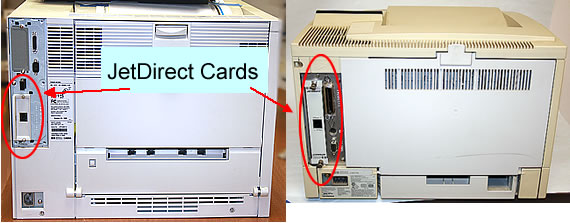
Here is a list of common HP JetDirect cards.

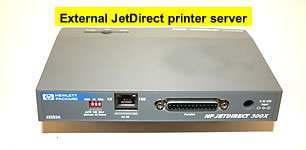
Here is an external print server

.

You can think of a print server as a network card for a printer with additional functionality. For example, most of the newer model HP JetDirect cards (600N and newer) have embedded web servers This means you can remotely access the configuration of the card by typing in the JetDirect card’s IP address into a web browser such as Internet Explorer or Firefox. Usually this is more convenient than configuring the JetDirect card at the printer’s control panel. Below is a picture of the web interface for a J6057A JetDirect Card.
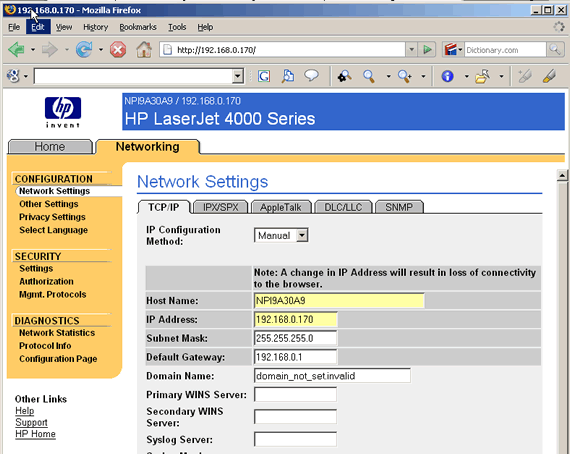
There are two basic pieces of information you will need to set up the JetDirect card: the IP address, and subnet mask. We won’t discuss a lot of technical details about IP addresses and subnet masks, but you should know that every device on a computer network has a unique IP address, and the subnet mask will generally be the same on all devices in a small network.

If you have a network administrator, ask them what IP address and subnet mask you should use. Or better yet, just have them configure the printer. If you don’t have a network administrator or resident computer guru, then we will assume that you have a small office or home network and that person is you. Below is a picture of a typical home or small office network.

If you have a DSL modem or cable modem you will typically have what is called a gateway or router. The terms gateway and router are often used interchangeably. In many cases the modem and gateway are combined in one unit. This device does quite a few things. It allows you to hook up many, potentially thousands, of devices to your network. The gateway has two IP address. One is an external IP address assigned by your ISP (internet service provider), and the other an internal IP address that is only accessible within your network. This internal IP address is also called you default gateway IP address (GW). All computers on your local network need to know the default gateway IP in order to access the internet.

Even though your ISP only assigns you one IP address, the gateway allows you to have many IP addresses through a technique called Network Address Translation (NAT). Read here for more http://en.wikipedia.org/wiki/Network_address_translation

It is also worth noting that there are specific IP addresses that are reserved for local networks called private IP addresses. Read here for more http://en.wikipedia.org/wiki/Private_network. You really don’t want to use non-private IP address schemes inside your network. Our example above uses the common 192.168.0.x IP scheme where x is a number between 0 and 255. More on that later.

Another function of the gateway is to automatically assign and manage IP addresses in your network. Remember that each device in your network must have a unique IP address. This feature is called DHCP – dynamic host configuration protocol. (DHCP is the successor to the older BOOTP protocol. Keep that in mind since you might run into the term BOOTP when setting up the JetDirect card). If you want to know more about DCHP look here http://en.wikipedia.org/wiki/Dhcp.

Having your gateway act as a DHCP server to assign IP addresses is a nice convenience because you don’t have to worry about configuring the network settings on all of the devices on your network; the DCHP server does it for you. IP addresses assigned this way are called dynamic IP addresses. Dynamic IP addresses can change. For example when a printer is turned off it looses its dynamic IP address. When it is turned back on the DHCP server assigns it another IP address. It might be the same IP address, but then again, it might not. If your printer had a dynamic IP address and its address changed, you wouldn’t be able to print. Your computer would be configured to print to the old IP address and the printer would no longer be there. Printers should therefore have static IP addresses. This requires that you manually configure the network settings of your printer.

For advanced users, some DHCP servers can assign the same IP address based on the MAC address (hardware address) of the JetDirect card. This would basically allow you to assign the IP address at the DHCP server, given you know the Mac address. The Mac address can be obtained by printing a configuration page, or sometimes it is printed on the JetDirect card.


you are here >>
Page 1 - network printing introduction
  Page 2 - figuring out your IP address
  Page 3 - entering an IP address into the JetDirect Card
  Page 4 - trouble-shooting
  Page 5 - driver setup
  Page 6 - printer sharing
  Page 7 - Appendix: printing a configuration page


Products
Refurbished LaserJets
Maintenance Kits
Toner cartridges
Transfer Kits
Paper trays and cassettes
Duplexers
Envelope feeders
JetDirect Cards
Cables

Employment
Jobs

Tech Support
Main Support Page
Maintenance kit
Instructions
Manuals & Drivers
Print Defects
Repetitive defects Ruler
Error Codes
Service Mode
Clear Maint Count
Cold Reset Instr.

Tech Support Forum
Discussion Board


We buy fuser cores!
We are looking for used fusers. Click here for info.


608-831-2396
Home | Forum | Tech Support | About Us | Legal | Contact Us
 
© 2008 Printertechs.com, Inc.